


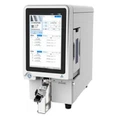
Wi-Fi Direct is a technology that allows devices to connect directly to each other without the need for a traditional Wi-Fi network or router. Setting up Wi-Fi Direct on a Smart Laser Printer can significantly enhance its usability, enabling you to print from a wide range of devices such as smartphones, tablets, and laptops with ease. As a Smart Laser Printer supplier, I'm here to guide you through the process step by step.
Prerequisites
Before you begin setting up Wi-Fi Direct on your Smart Laser Printer, there are a few things you'll need:
- A Smart Laser Printer that supports Wi-Fi Direct. Most modern printers come with this feature, but it's always a good idea to check your printer's manual or specifications.
- A device (smartphone, tablet, or laptop) with Wi-Fi Direct capabilities. This is standard on most Android devices and many newer iOS devices.
- The printer's power cable and, if necessary, an Ethernet cable for initial setup.
Step 1: Prepare Your Printer
First, make sure your Smart Laser Printer is properly connected to a power source and turned on. Wait for the printer to fully initialize. You should see the printer's control panel display its status, usually indicating that it's ready to use.
Next, locate the Wi-Fi Direct settings on your printer. This can typically be found in the printer's menu system. On most printers, you'll need to navigate to the "Network" or "Wireless" settings and then select "Wi-Fi Direct."
Step 2: Enable Wi-Fi Direct on the Printer
Once you've found the Wi-Fi Direct settings, select the option to enable Wi-Fi Direct. The printer will then generate a unique Wi-Fi Direct network name (SSID) and password. These will be displayed on the printer's control panel or in the settings menu. Make a note of these details, as you'll need them to connect your devices.
Some printers may also allow you to customize the Wi-Fi Direct network name and password. If you prefer, you can do this at this stage. Keep in mind that the password should be strong and easy for you to remember.
Step 3: Connect Your Device to the Printer's Wi-Fi Direct Network
Now it's time to connect your device (smartphone, tablet, or laptop) to the printer's Wi-Fi Direct network.
For Android Devices
- Open the "Settings" app on your Android device.
- Tap on "Wi-Fi."
- Select the Wi-Fi Direct network name (SSID) that you noted earlier from the list of available networks.
- Enter the Wi-Fi Direct password when prompted.
- Once connected, your device will establish a direct connection to the printer.
For iOS Devices
- Go to "Settings" > "Wi-Fi" on your iOS device.
- Select the Wi-Fi Direct network name (SSID) of your printer.
- Enter the Wi-Fi Direct password when prompted.
- Your iOS device will then connect to the printer.
For Laptops
- On your laptop, click on the Wi-Fi icon in the system tray (Windows) or menu bar (Mac).
- Select the Wi-Fi Direct network name (SSID) of your printer from the list of available networks.
- Enter the Wi-Fi Direct password when prompted.
- Your laptop will connect to the printer.
Step 4: Test the Connection
Once your device is connected to the printer's Wi-Fi Direct network, it's a good idea to test the connection to make sure everything is working properly.
Open a document, photo, or any other file that you want to print on your device. Then, look for the "Print" option in the app's menu. Select your Smart Laser Printer from the list of available printers. You may need to choose the option to search for available printers if it's not listed immediately.
Adjust the print settings as desired, such as the number of copies, page orientation, and print quality. Then, click the "Print" button. The printer should start printing the document shortly.
Step 5: Troubleshooting
If you encounter any issues during the setup process or when trying to print, here are some common problems and solutions:
Printer Not Found
- Make sure that Wi-Fi Direct is enabled on both the printer and your device.
- Check that your device is connected to the correct Wi-Fi Direct network.
- Try restarting both the printer and your device.
Printing Errors
- Check the printer's paper tray to ensure that it has enough paper.
- Make sure the printer's ink or toner cartridges are properly installed and have sufficient ink or toner.
- Try updating the printer's drivers or firmware to the latest version.
Additional Considerations
- Security: While Wi-Fi Direct is a convenient way to connect devices directly to your printer, it's important to keep security in mind. Always use a strong password for your Wi-Fi Direct network and avoid connecting to public Wi-Fi Direct networks from untrusted sources.
- Compatibility: Not all apps may support printing via Wi-Fi Direct. Make sure the app you're using has print functionality and supports your printer model.
- Range: The range of Wi-Fi Direct connections is typically limited. Make sure your device is within a reasonable distance of the printer for a stable connection.
Related Products
If you're interested in other types of printers, we also offer a range of specialized printers, including the Microscope Slide Printer, Laser Slide Printer, and Tissue Ribbon Slide Printer. These printers are designed for specific applications and offer high-quality printing results.


Conclusion
Setting up Wi-Fi Direct on your Smart Laser Printer is a straightforward process that can greatly enhance the convenience and flexibility of your printing experience. By following the steps outlined in this guide, you should be able to connect your devices to the printer's Wi-Fi Direct network and start printing in no time.
If you have any further questions or need assistance with setting up your printer, please don't hesitate to contact us. We're here to help you get the most out of your Smart Laser Printer. Whether you're a small business owner, a student, or a home user, our printers are designed to meet your needs.
If you're interested in purchasing a Smart Laser Printer or any of our other products, we invite you to contact us for more information and to discuss your specific requirements. Our team of experts is ready to assist you with your procurement process.
References
- Printer manufacturer's user manual
- Wi-Fi Alliance official documentation on Wi-Fi Direct technology