


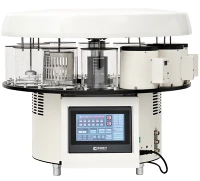


Hey there! I'm a supplier of the Smart Laser Printer, and today I'm gonna walk you through how to print QR codes using this amazing piece of tech.
First off, let me give you a bit of background on the Smart Laser Printer. It's a top - notch device that offers high - quality printing with amazing precision. If you're into printing QR codes, this printer is a game - changer. You can check out more about it on our website: Smart Laser Printer.
Why Print QR Codes?
QR codes have become super popular these days. They're used in all sorts of scenarios, from marketing campaigns to inventory management. For businesses, QR codes can lead customers to product pages, special offers, or event details. And for personal use, you can share your contact info, website, or social media profiles easily. With the Smart Laser Printer, you can print these QR codes quickly and with great clarity.
Preparing to Print QR Codes
Before you start printing, there are a few things you need to do.
1. Generate the QR Code
There are tons of free QR code generators available online. Just type in the information you want the QR code to represent, like a URL, text, or contact details. Once you've entered the data, the generator will create a QR code image for you. You can usually download it in different file formats such as PNG or JPEG.
2. Check Your Printer Settings
Make sure your Smart Laser Printer is properly connected to your computer, either via USB or Wi - Fi. Open the printer settings on your computer. You'll want to set the paper size to match the size of the paper you'll be using to print the QR code. Also, adjust the print quality. For QR codes, a high - quality setting is recommended to ensure the code is scannable.
3. Load the Paper
Choose the right type of paper for your QR code printing. You can use regular printer paper, but if you need something more durable, like cardstock, the Smart Laser Printer can handle that too. Just load the paper into the paper tray, making sure it's aligned correctly.
Printing the QR Code
Now that you've got everything ready, it's time to print the QR code.
1. Open the Image
Locate the QR code image file you downloaded from the online generator. Double - click on it to open it in an image viewer or photo editing software.
2. Send to Print
In the image viewer or photo editing software, look for the "Print" option. Usually, it's in the "File" menu. Click on it, and a print dialog box will appear.
3. Adjust Print Options
In the print dialog box, you can make some final adjustments. You can choose how many copies you want to print, and you can also scale the image if needed. Make sure the printer selected is your Smart Laser Printer.
4. Start Printing
Once you're satisfied with the settings, click the "Print" button. The Smart Laser Printer will start working its magic, and in no time, you'll have a beautifully printed QR code.
Troubleshooting
Sometimes, things might not go as smoothly as planned. Here are some common issues and how to fix them.
1. QR Code Not Scannable
If the QR code you printed can't be scanned, it could be due to low print quality. Check your printer settings and make sure you're using a high - quality setting. Also, make sure the image you're printing is clear and not pixelated.
2. Paper Jams
If you encounter a paper jam, turn off the printer and carefully remove the jammed paper. Make sure there are no small pieces of paper left inside the printer. Then, load the paper correctly and try printing again.
Other Printer Options
Apart from the Smart Laser Printer, we also offer other great printers. Check out our Tissue Ribbon Slide Printer and UV Slide Printer. These printers have their own unique features and are suitable for different printing needs.
Conclusion
Printing QR codes with the Smart Laser Printer is a breeze. With a little bit of preparation and following the steps I've outlined, you can print high - quality QR codes for all your needs. Whether you're a business owner looking to enhance your marketing efforts or an individual wanting to share information, our Smart Laser Printer is up to the task.


If you're interested in purchasing the Smart Laser Printer or any of our other printers, we'd love to have a chat with you. Reach out to us for more details and to start a procurement discussion. We're here to help you find the best printing solution for your requirements.
References
- Online QR code generators: Various free online tools were used for QR code generation examples.
- Printer user manuals: The user manual of the Smart Laser Printer was referred to for printer settings and troubleshooting information.