


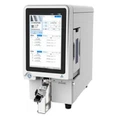
Replacing the ink cartridges of a UV Slide Printer is a crucial maintenance task that ensures consistent and high - quality printing results. As a supplier of UV Slide Printers, I understand the importance of guiding our customers through this process to minimize downtime and maximize the performance of their equipment. In this blog, I will walk you through the step - by - step process of replacing the ink cartridges in a UV Slide Printer.
Why Replace Ink Cartridges Regularly?
Before delving into the replacement process, it's essential to understand why regular ink cartridge replacement is necessary. Over time, ink cartridges can dry out, clog, or run out of ink, which can lead to poor print quality, streaks, or even complete printing failures. By replacing the cartridges at the recommended intervals, you can maintain the sharpness, clarity, and color accuracy of your printed slides.


Pre - replacement Preparations
- Gather Necessary Tools: You will need a pair of clean, lint - free gloves to prevent any fingerprints or debris from getting on the cartridges or inside the printer. It's also a good idea to have a clean, soft cloth on hand to wipe up any potential ink spills.
- Shut Down the Printer: Before starting the replacement process, make sure the printer is turned off and unplugged from the power source. This ensures your safety and prevents any electrical damage to the printer.
- Check the Ink Cartridge Compatibility: Ensure that you have the correct type of ink cartridges for your specific UV Slide Printer model. Using incompatible cartridges can lead to printing issues and may even void the printer's warranty.
Step - by - Step Ink Cartridge Replacement Process
Step 1: Open the Printer Cover
Locate the printer cover, which is usually located on the front or top of the printer. Gently lift or slide the cover open to expose the ink cartridge compartment. Some printers may have a locking mechanism that needs to be released before opening the cover.
Step 2: Identify the Empty Cartridges
Inside the cartridge compartment, you will see a series of cartridges, each corresponding to a different color (such as cyan, magenta, yellow, and black). Check the ink level indicators on the cartridges or the printer's control panel to identify the cartridges that need to be replaced.
Step 3: Remove the Old Cartridges
Put on your gloves to avoid touching the ink nozzles or electrical contacts on the cartridges. Grasp the cartridge firmly by its sides and gently pull it straight out of its slot. Be careful not to shake or tilt the cartridge, as this can cause ink to spill.
Step 4: Prepare the New Cartridges
Take the new ink cartridges out of their packaging. Before inserting them into the printer, remove the protective tape from the bottom of the cartridges. This tape covers the ink nozzles and needs to be removed for the ink to flow properly.
Step 5: Insert the New Cartridges
Align the new cartridge with its corresponding slot in the printer. Make sure the cartridge is oriented correctly, with the ink nozzles facing downwards. Gently push the cartridge into the slot until it clicks into place. Repeat this process for all the cartridges that need to be replaced.
Step 6: Close the Printer Cover
Once all the new cartridges are installed, carefully close the printer cover. Ensure that the cover is securely latched to prevent any dust or debris from entering the printer.
Step 7: Power On the Printer
Plug the printer back into the power source and turn it on. The printer will automatically detect the new cartridges and may perform a calibration process to ensure optimal print quality. Follow any on - screen prompts to complete the setup.
Troubleshooting Tips
- Ink Not Flowing: If you notice that the ink is not flowing properly after replacing the cartridges, try running a cleaning cycle on the printer. This can help unclog the ink nozzles and restore normal ink flow.
- Print Quality Issues: If the print quality is still poor after replacing the cartridges, check for any loose connections or debris in the cartridge compartment. You may also need to perform a nozzle check or alignment to ensure accurate printing.
- Error Messages: If the printer displays an error message after installing the new cartridges, refer to the printer's user manual or contact our customer support team for assistance.
Comparing UV Slide Printers with Other Slide Printing Technologies
While UV Slide Printers offer many advantages, such as high - quality prints and fast drying times, it's worth comparing them with other slide printing technologies like Laser Slide Printer and Tissue Ribbon Slide Printer.
- Laser Slide Printer: Laser Slide Printers use laser technology to transfer images onto slides. They are known for their high - speed printing and sharp, precise prints. However, they may be more expensive to purchase and operate compared to UV Slide Printers.
- Tissue Ribbon Slide Printer: Tissue Ribbon Slide Printers use a thermal transfer process to print images onto slides. They are often more affordable and suitable for low - volume printing. However, their print quality may not be as high as that of UV Slide Printers.
The Importance of a Complete Printing System
In addition to the printer itself, it's important to consider the entire Laser Slide Printing System. A comprehensive printing system includes not only the printer but also the software, ink cartridges, and slides. Using a compatible and high - quality printing system ensures optimal performance and print quality.
Conclusion
Replacing the ink cartridges of a UV Slide Printer is a relatively simple process that can significantly improve the print quality and performance of your printer. By following the steps outlined in this blog and taking the necessary precautions, you can ensure a smooth and successful cartridge replacement.
If you are in the market for a UV Slide Printer or need more information about our products and services, we invite you to contact us for a purchase consultation. Our team of experts is ready to assist you in finding the right printing solution for your needs.
References
- Manufacturer's User Manual for UV Slide Printers
- Industry standards and best practices for slide printing